 Blink
Free and open-source screenshot tool for Windows
Screenshots that look finished the moment you take them.
Capture a region, a window or a whole scrolling page. Mark it up, black out what is private, and put it on a background or a device. One small, native app, written in Rust, that starts with Windows and stays out of your way.
Free, open source (GPL-3.0). No account, no ads, no telemetry. Windows 10 and 11, 64-bit.
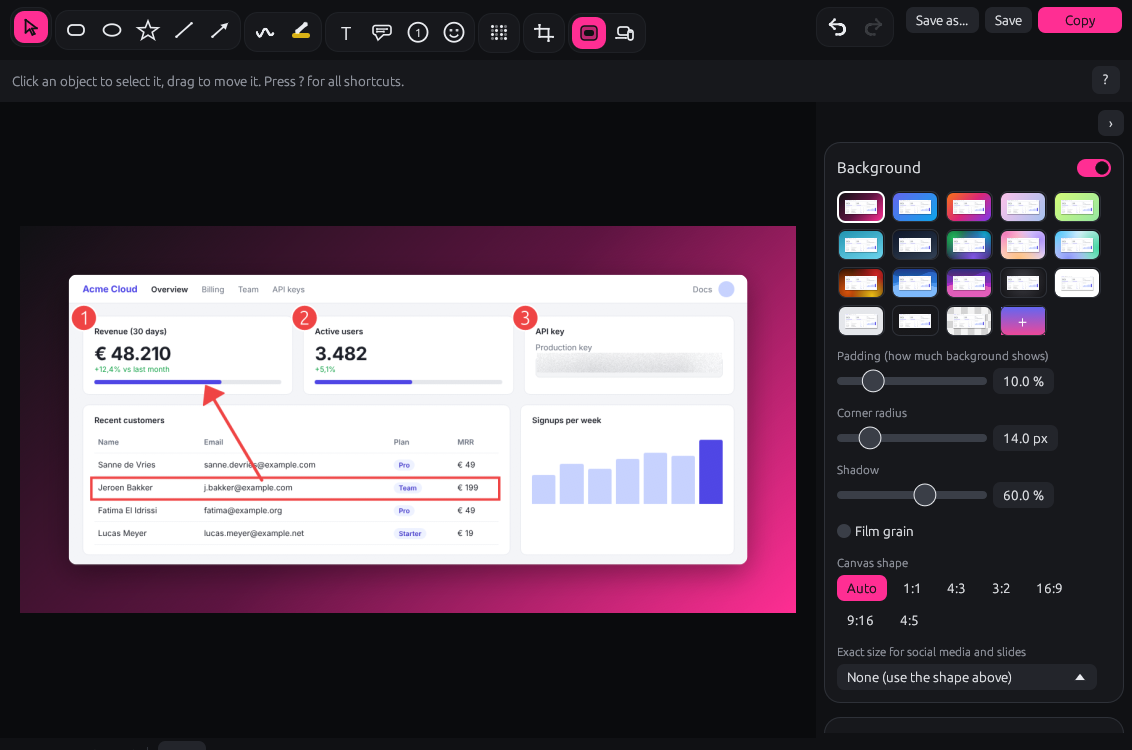
- 7 capture modes including scrolling pages, plus copy text
- Real redaction, not a cosmetic blur
- 17 backgrounds and 18 device frames
- Free and open source. No account.
Capture
Press one key. Get exactly what you pointed at.
Hover a window and it snaps to its real, visible edge. Drag for a region. Press Space to cycle through the other modes. Your screenshot is a 1:1 copy of your screen pixels, also on mixed-scaling multi-monitor setups.
Seven ways to capture, one overlay
A single selection overlay spans all your monitors, with a magnifier for pixel-precise edges. The mode bar at the top shows the active mode and what the mouse and keys do; click a mode to switch.
- Window edges without the invisible resize border or shadow that Windows adds.
- Works on GPU-rendered apps such as Chrome, Edge and Electron, where copying a window directly often returns black. Blink cuts the window out of a frozen copy of the screen instead.
- Scrolling capture stitches the page together and recognises fixed headers and footers.
- Copy text instead of an image: in the Text mode (T), click a line, Ctrl + click a paragraph or drag over a region, and the text is on your clipboard. It is read by the OCR engine built into Windows, offline.

Print Screen, handled properly
On Windows 11 the Print Screen key opens the Snipping Tool. Blink shows for every hotkey whether it is active or taken by another app, and gives you an Override button to take it over.
| Action | Default hotkey |
|---|---|
| Region or window | Print Screen |
| Screen under the mouse | Shift + Print Screen |
| Active window | Alt + Print Screen |
| Scrolling page | Ctrl + Shift + Print Screen |
| Copy text from the screen | Ctrl + Alt + Print Screen |
| Capture menu | Ctrl + Print Screen |
Every hotkey can be changed.
Edit
Make your point. Hide the rest.
A fast editor that opens straight after the capture. Every tool has a single-key shortcut, and Blink remembers the colour, width and style you used last for each tool.
The annotations people actually use
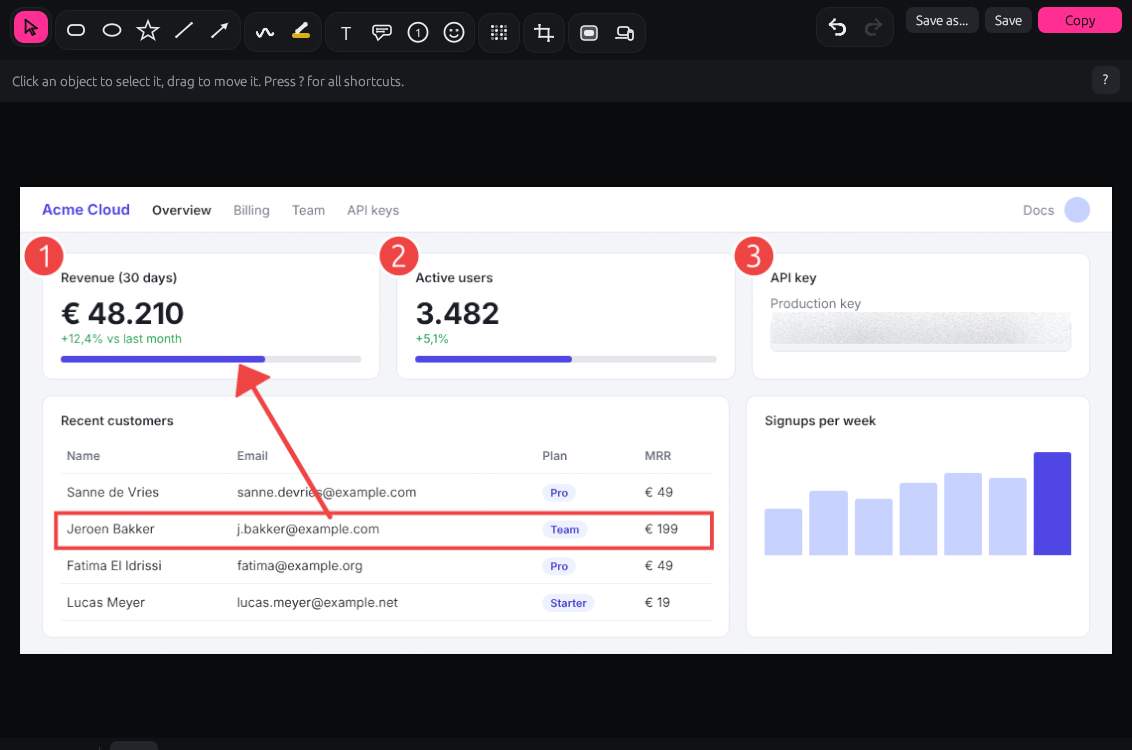
- Arrows with five head styles, on one or both ends
- Rectangles and ellipses with line, fill and transparency
- Text in bold, italic, underline or strikethrough, with an optional background
- Numbered steps for how-to guides and bug reports
- Shapes, callouts and emoji stamps: star, hexagon and flowchart shapes, a text box with a pointer, and 54 colour emoji that stay sharp at any size
- Highlighter, freehand, line, crop, colour picker with eyedropper, undo and redo
- Hold Ctrl to select and move with any tool
Redaction
Blur that is built to stay blurred
A light Gaussian blur keeps the shape of letters, and that can be partly reversed. Blink first reduces the area to blocks, blurs it three times with a radius that scales with the area, and adds noise. Far too little information is left to reconstruct text.
For passwords and API keys, use the black box. It removes the content completely, and the editor tells you so.
- Blur, pixelate or black box, with adjustable strength
- Click a word, key or e-mail address to hide it. Find private info suggests what to hide (e-mail addresses, phone numbers, IBANs, card numbers, IP addresses, keys and tokens, passwords, BSN), and you confirm. It is a help, not a guarantee.
- What you see is what you export: the editor and the export use the same renderer
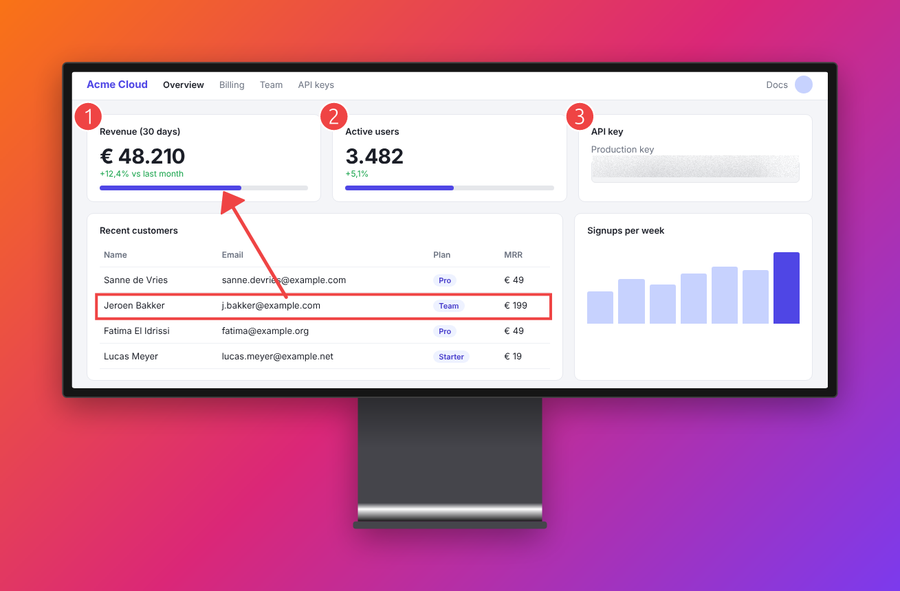
Find private info
One click to find what should not be shared.
Before you paste a screenshot into a ticket, a chat or a slide, Blink reads it and marks everything that looks private. You check the suggestions and hide them all in one step.
Blink finds it, you decide
Press Find private info in the redaction tool. Every finding gets a box; click a box to leave it out, pick blur, pixelate or black box, and press Hide. One undo brings everything back.
- E-mail addresses, phone numbers, IP addresses
- IBANs and card numbers, checked with their own checksum (mod 97, Luhn) to keep false alarms down
- API keys, tokens and passwords: well-known key formats, long random strings, and values after labels such as Password: or token =
- Dutch citizen service numbers (BSN), checked with the elfproef
- Or click a single word or key to hide just that one
It is a suggestion, not a guarantee: text recognition can misread a character or miss text in an image. Always give the screenshot a last look.
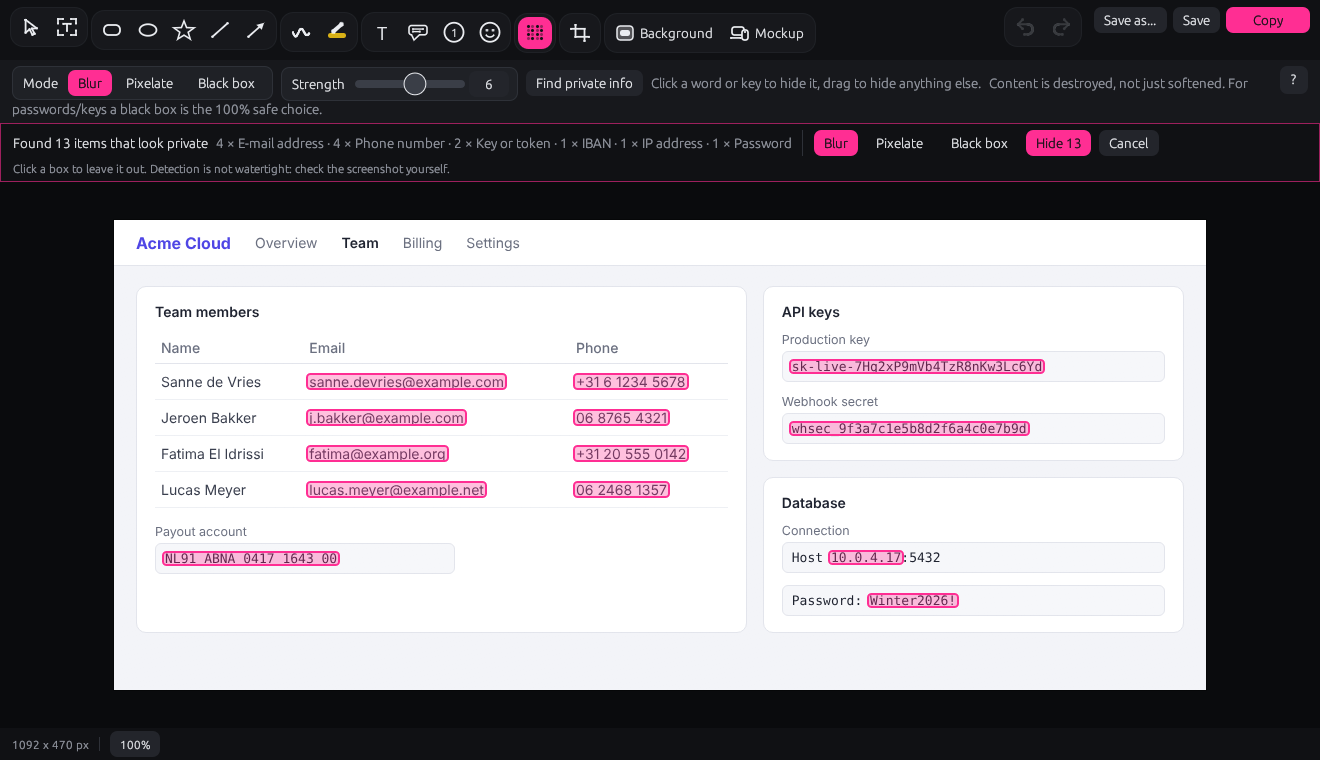
Read on your PC. Never in the cloud.
Text recognition uses the OCR engine that is built into Windows 10 and 11. It runs on your own PC and works without an internet connection. Blink does not send your screenshot, the text it reads or what it finds to any server: no cloud OCR, no AI service, nothing stored somewhere else.
- Works offline, also on a plane or behind a strict company firewall
- No download and no account: Windows already has the engine
- The same engine powers copy text from the screen and selecting text in the editor
- The code is open source, so anyone can check this
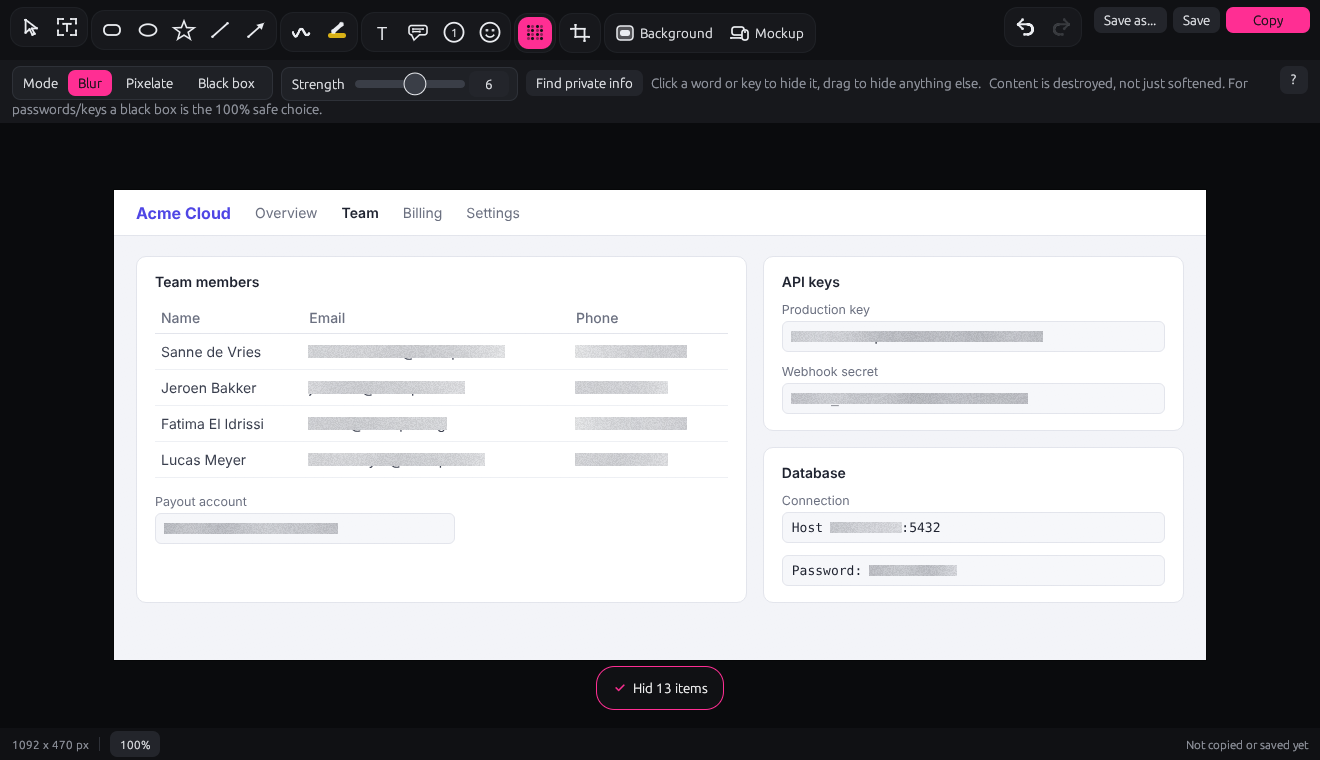
Present
From raw screenshot to something you are happy to post.
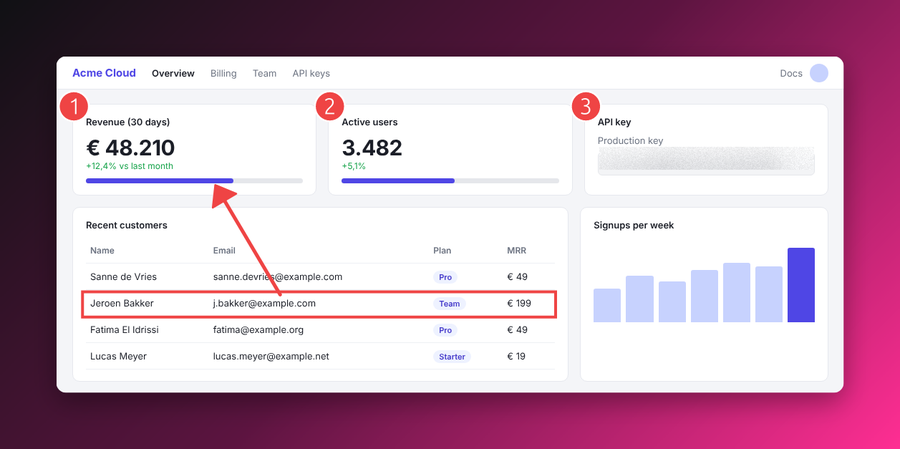
Turn on a background, a device mockup, or both. Copy and Save include the frame, at the original resolution.
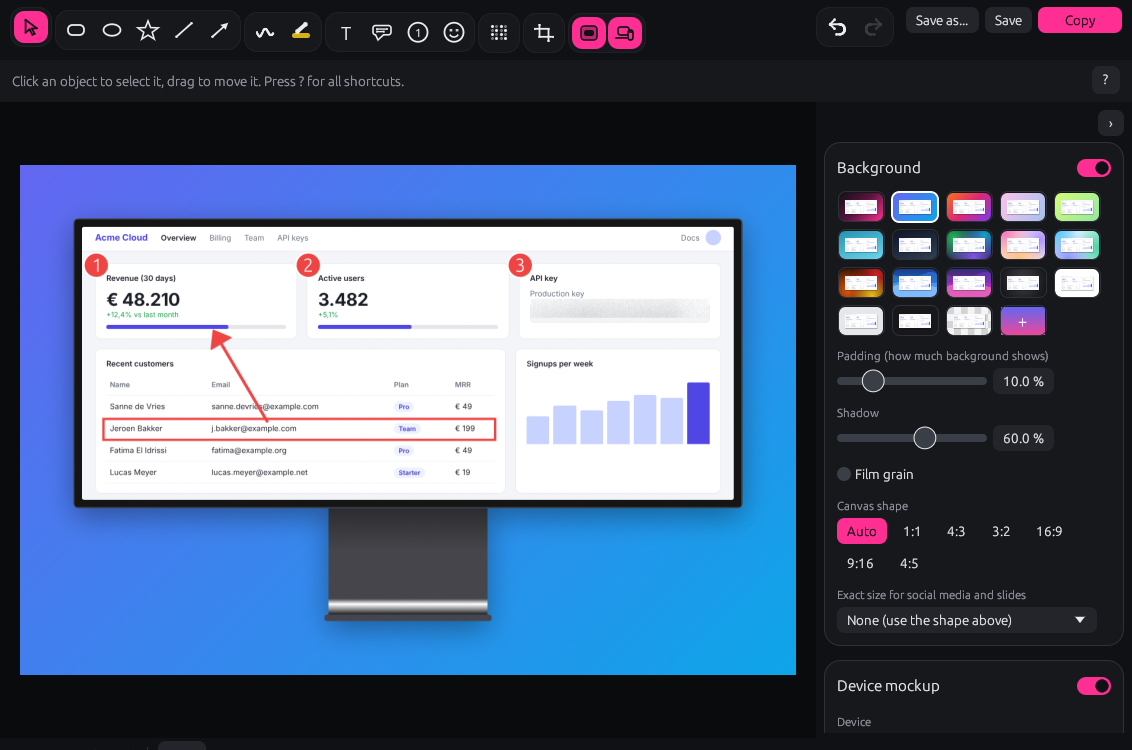
Backgrounds and devices in two clicks
- 17 backgrounds: gradients, mesh, waves, solid and transparent, plus your own two-colour gradient
- Padding, corner radius, shadow, film grain and canvas ratios (1:1, 4:3, 3:2, 16:9, 9:16, 4:5), or an exact size for social media and slides
- 16 devices (iPhone, Pixel, Galaxy, iPad, Surface, MacBook, Windows laptops, iMac and monitors), plus a browser window and an app window
- Blink picks the device that fits your screenshot. Fill crops a little to fill the screen, Fit shows everything.
- Devices are drawn as vectors, so they stay sharp at any resolution
Built in Rust
Light when idle. Quick when you need it.
Blink is written in Rust and compiles to native Windows code: no Electron, no browser engine, no runtime to install. The whole app is one exe of about 7 MB.
Tiny always-on part
The tray app, hotkeys, capture and overlay are plain Win32 with no UI framework. The editor starts as its own process only when you need it, so an editor crash never takes the tray with it.
You decide what happens next
After each capture: open the editor, copy, save, or have Blink ask you with a small menu at the mouse. The notification has Edit, Save and Save as buttons. PNG, JPEG, WebP and BMP.
Installs without admin rights
Per-user install, nothing machine-wide. There is also a portable exe that runs without installing. Start with Windows is optional.
Your language, your theme
Blink speaks English and Dutch and comes in a dark and a light theme, or follows the Windows setting.
Native and memory-safe
Rust gives native speed without a garbage collector, and its compiler rules out most memory bugs before Blink ever runs. That matters for an app that runs all day and reads your screen.
Your screenshots stay on your PC
No account, no cloud, no analytics. The only network request is the daily update check on GitHub, and you can turn it off.
Compare
How Blink compares
Every tool here is good at something. This is where Blink is strong, and where it is not.
| Feature | Blink | Snipping Tool | Greenshot | ShareX | Flameshot | Snagit |
|---|---|---|---|---|---|---|
| Price | Free | Free, built in | Free | Free | Free | $39 per year |
| Open source | GPL-3.0 | No | GPL-3.0 | GPL-3.0 | GPL-3.0 | No |
| Platforms | Windows | Windows | Windows | Windows | Windows, macOS, Linux | Windows, macOS |
| Window capture that snaps to the app | Yes | Yes | Yes | Yes | Partly | Yes |
| Scrolling capture | Yes | No | LimitedInternet Explorer only | Yes | No | Yes |
| Arrows, shapes, text, highlighter | Yes | Yes | Yes | Yes | Yes | Yes |
| Numbered steps | Yes | No | Yes | Yes | Yes | Yes |
| Speech bubbles / callouts | Yes | No | Yes | Yes | No | Yes |
| Emoji stamps | Yes | Yes | No | Yes | No | Stamps |
| Blur and pixelate | Yes | Notext redaction via OCR | Yes | Yes | Yes | Yes |
| Background, padding, rounded corners, shadow | Yes17 presets | No | No | Yessince 2026 | No | No |
| Device mockups | Yes18 frames | No | No | No | No | No |
| Text recognition (OCR) | Yesoffline, built into Windows | Yes | Yes | Yes | No | Yes |
| Screen recording / GIF | No | Yes | No | Yes | No | Yes |
| Upload to the cloud | Noby design | No | Plugins | Many services | No | Yes |
Checked in November 2026 against each tool's own website, changelog and documentation. Tools change quickly: if something here is out of date, open an issue and we fix it.
Pick Blink if
you want screenshots that are ready to share: annotated, safely redacted, and on a background or device, without a second app. And you want a tool that does that and nothing else.
Pick ShareX if
you need everything: screen recording, uploads to dozens of services, automation workflows. It is more powerful than Blink, and busier.
Pick Flameshot or Snagit if
you also work on macOS or Linux (Flameshot is free on all three), or you need a commercial tool with video and support (Snagit).
Download
Get Blink
Free, forever. The newest version is always on GitHub Releases, with its changelog and SHA-256 checksums.
Windows
AvailableWindows 10 and 11, 64-bit. Installs per user, no admin rights needed.
Download installermacOS
Not yetThe capture part of Blink is written directly against Windows. A macOS version needs its own capture, hotkey and tray code, and is on the roadmap.
Read the planLinux
Not yetThe editor already runs on Linux; capturing, hotkeys and the tray do not. X11 is the first target. Wayland limits what any screenshot tool can do, so it comes after.
Read the planFAQ
Questions people ask first
Is Blink really free?
Yes. Blink is open source under the GNU General Public License v3.0. There is no paid version, no trial and no feature held back. If it saves you time, you can support it with a small donation, but you do not have to.
Windows says the publisher is unknown. Is that safe?
The installer is not code-signed yet, so Windows SmartScreen warns about it the first time. Choose More info, then Run anyway. Every release is built in public by GitHub Actions from the source code in the repository, and GitHub lists the SHA-256 checksum of each file, so you can check exactly what you downloaded.
Does Blink upload my screenshots anywhere?
No. Screenshots are kept in memory, in your clipboard, or in the folder you choose. The only network request Blink makes is a daily check for a new version on GitHub, which you can turn off.
Where is the text in my screenshots read?
On your own PC. Copying text and Find private info use the OCR engine built into Windows, which works offline. Blink sends no image and no text to any server or AI service for it.
Print Screen still opens the Snipping Tool.
That is a Windows 11 setting. Turn off Settings, Accessibility, Keyboard, Use the Print Screen key to open screen capture. Blink also shows the status of each hotkey and can override a combination another app has taken.
What are the limits of scrolling capture?
It scrolls with simulated mouse wheel steps and stitches the frames together. It works in browsers, editors, chat apps and File Explorer. It can fail on content that changes while it scrolls, such as video, animations, or lazy-loaded content that shifts. In that case Blink stops and gives you what it captured so far.
Is there a macOS or Linux version?
Not yet. Blink runs on Windows 10 and 11 (64-bit). The editor is portable, but capturing, hotkeys and the tray icon are written for Windows. The plan for macOS and Linux explains what a port needs.
What happens to my settings if I uninstall?
The uninstaller removes the app but leaves your settings and your screenshots in place.
I found a bug or I miss a feature.
Open an issue on GitHub. Pull requests are welcome too; CONTRIBUTING.md explains how to build Blink.
Support Blink
Free to use. Kept alive by people who use it.
Blink is made in spare time. A star on GitHub helps others find it; a coffee pays for the time it takes to keep it working.